
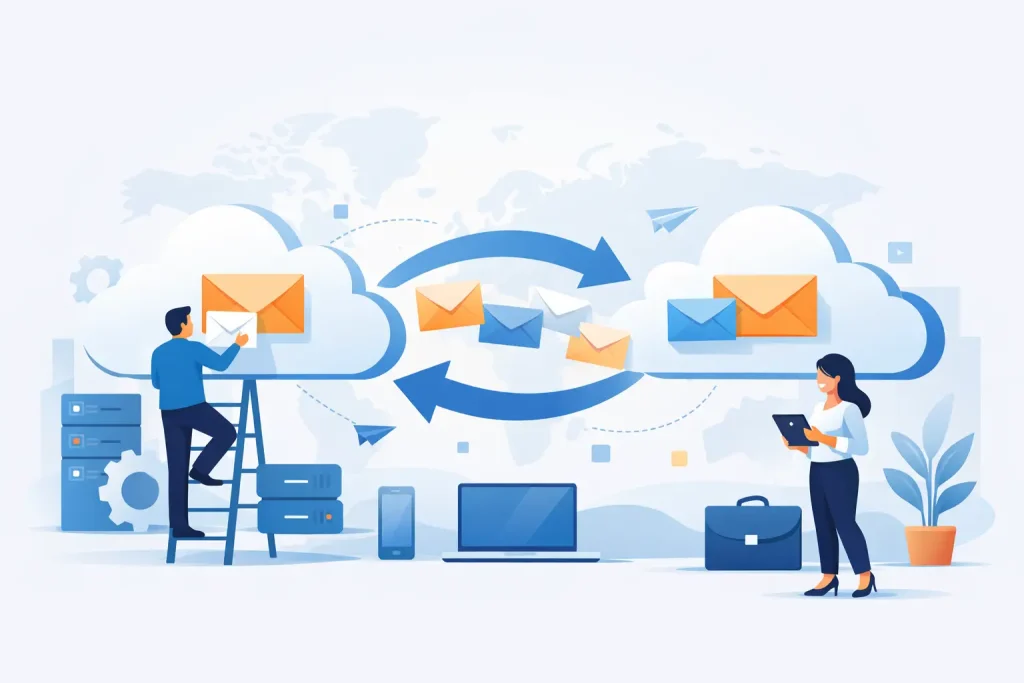
Monday morning is a bad time to discover that half your staff cannot send email, the calendar sharing is broken, and three years of archived messages did not come over. That is usually what people fear when they ask how to migrate business email. The good news is that email migration does not have to be disruptive. With the right plan, it becomes a controlled infrastructure upgrade that improves reliability, security, and day-to-day communication.
For small and midsize businesses, nonprofits, medical offices, and community organizations, email is more than inboxes. It is scheduling, customer communication, vendor coordination, records, and trust. A rushed migration can interrupt operations. A well-managed one can enhance your business by reducing risk, improving collaboration, and setting up a stronger digital foundation.
Why businesses migrate email in the first place
Most organizations do not change email systems for fun. They migrate because the current setup is holding them back. Sometimes the problem is technical, like an aging mail server, recurring outages, poor spam filtering, or limited storage. In other cases, it is operational. Different users may be on different platforms, admin access may be unclear, or the system may no longer match compliance and security expectations.
There is also a growth issue. As organizations add remote staff, shared calendars, mobile device access, and cloud-based workflows, older email environments can become expensive to manage and difficult to protect. That is often when leadership decides it is time to consolidate systems and move to a platform that supports both performance and accountability.
How to migrate business email with a realistic plan
The biggest mistake in email migration is treating it like a simple copy-and-paste project. It is really a business continuity project. The emails matter, but so do authentication records, user permissions, mobile devices, archive policies, and the timing of the cutover.
A successful migration starts with an audit. Before moving anything, identify what you actually have. That includes active mailboxes, shared mailboxes, aliases, distribution lists, calendars, contacts, archive files, forwarding rules, and any connected devices or applications. Many businesses discover old accounts still in use by websites, scanners, billing systems, or staff who left years ago. If you skip this step, those surprises usually show up after launch.
From there, define the target environment. That may be Microsoft 365, Google Workspace, or another hosted platform. The right choice depends on how your team works, what security controls you need, and whether your other systems already lean heavily into one ecosystem. There is no universal winner. Some teams benefit from tighter integration with Office apps and desktop workflows. Others prefer a cloud-native environment with simpler administration. The better platform is the one that fits your operations, not the one with the loudest marketing.
What to prepare before the move
Preparation is where most of the real work happens. This is also where you prevent avoidable downtime.
Start by cleaning up the environment. Remove inactive accounts, confirm mailbox ownership, and decide what historical data actually needs to move. Not every old PST file or abandoned shared inbox deserves a place in your new system. Migrating everything can drive up costs, slow the process, and import clutter that no one uses.
Next, verify domain ownership and DNS access. If the person who set up your domain left years ago and nobody knows where the credentials are, solve that before planning a migration date. Email cutovers depend on DNS changes, and delays here can stop the entire project.
You should also review security settings before migration, not after. This includes multi-factor authentication, password policies, spam controls, device management, and email authentication records such as SPF, DKIM, and DMARC. Many organizations treat security as a second phase, but that creates a window of unnecessary exposure right when systems are changing and users are more likely to click the wrong thing.
Choosing the right migration method
There are several ways to move email, and the right one depends on your current platform, your timeline, and how much complexity your environment has.
A cutover migration moves everyone at once. This can work well for smaller organizations with straightforward setups and a limited number of mailboxes. It keeps the process simpler, but it also raises the stakes. If there are issues, everyone feels them immediately.
A staged migration moves users in waves. This approach gives you more control and makes sense for organizations with multiple departments, several locations, or heavier reliance on shared resources. It takes more planning, but it reduces risk because you can test with a smaller group first.
A hybrid setup temporarily connects old and new environments during the transition. This is often the best choice for larger or more complex organizations, especially if they need coexistence while systems are moving. It is more technical and usually requires experienced administration, but it offers flexibility.
The trade-off is straightforward. Simpler migrations are faster but less forgiving. More controlled migrations reduce disruption but require stronger project management.
The cutover day matters less than the testing
People tend to focus on the go-live date, but the safer approach is to focus on testing. Before the final switch, validate a pilot group. Move a small set of users who represent real-world needs, such as leadership, front desk staff, shared mailbox users, and employees who rely heavily on mobile devices.
Test mail flow in both directions. Confirm calendars, contacts, delegated access, mobile sync, and shared folders. Check whether external systems can still send email using your domain. Printers, website forms, CRMs, and appointment tools are common failure points.
This is also the time to measure user experience. If staff cannot find archived folders, if Outlook profiles are breaking, or if mobile prompts are confusing, document that now and adjust your rollout instructions. Technical success is not the same as operational success.
Common problems during a business email migration
Most migration issues are predictable. The challenge is that they are often dismissed as minor details until they affect customers or staff.
DNS propagation can create a temporary split where some messages go to the old system and some go to the new one. That is normal to a point, but it needs to be managed carefully. Legacy applications may keep trying to send through old SMTP settings. Shared mailbox permissions may not carry over the way users expect. Local archives may sit on individual computers instead of the server, which means they will not migrate unless someone intentionally includes them.
Then there is user behavior. Even when the technical migration is solid, staff may keep using outdated apps, old passwords, or cached profiles. That is why communication matters. Let users know what is changing, when it is changing, what they need to do, and who to contact if something looks wrong.
How to keep the migration from interrupting business
The best migrations are boring from the customer side. Orders still come in, appointment reminders still send, and staff can still access the information they need.
That level of stability comes from treating email as part of your broader business systems, not as a standalone tool. Review every touchpoint tied to email, including your website contact forms, marketing platforms, ticketing systems, accounting software, scanners, copiers, and multi-function devices. If a nonprofit relies on volunteer sign-up notices or a medical office depends on appointment confirmations, those workflows need just as much attention as executive mailboxes.
It also helps to schedule the final cutover around your actual business rhythm. A retail operation, clinic, or seasonal tourism business may have very different low-impact windows. The technically convenient date is not always the operationally smart one.
After the move, do not just walk away
Once the mailboxes are live, there is still work to do. Confirm that backups are in place, security settings are enforced, and users have fully transitioned off the old system. Watch for forwarding rules, stale credentials, and unauthorized login attempts in the first few weeks.
This is also the right time to improve standards. Organize shared mailbox ownership, document admin access, clean up group permissions, and create a support process for new users and devices. Email migration is not just a move. It is a chance to correct years of patchwork decisions and put your communication systems on firmer ground.
For organizations that want comprehensive digital solutions, this is where an experienced partner adds real value. Email touches cybersecurity, cloud administration, user training, domain management, and continuity planning. When those pieces are coordinated well, the result is not just a new inbox. It is a more dependable business environment with fewer blind spots and better day-to-day performance.
If you are planning how to migrate business email, think beyond the transfer itself. The smartest move is the one that protects your data, supports your people, and leaves your organization easier to manage than it was before.