
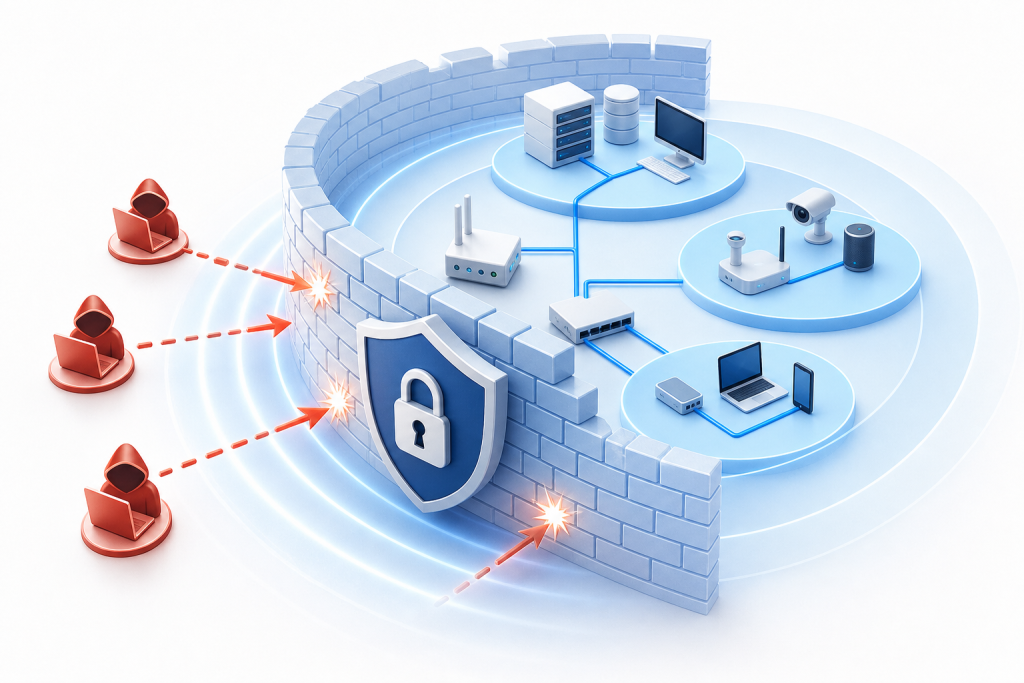
Blocking hackers works best in layers. Put a firewall at the network edge, filter spoofed and reserved IP traffic at the router, segment risky devices, restrict outbound traffic, and require multi-factor authentication on every account. Then harden phones against SIM-swapping and smishing, keep software patched, and manage personal devices used for work.
No single control stops every attacker. This guide works from the outside in: the network edge first, then the devices and accounts behind it. It is written for small businesses and for individuals who want fewer ways in for someone who should not be there.
Where Blocking Hackers Actually Happens: ISP, Network Edge and Device
You can block hackers at three layers: your internet provider, your network edge, and the device itself. Each layer catches different things, which is why relying on only one leaves gaps.
The first layer is your internet service provider (ISP). Some providers filter obviously malicious traffic before it reaches you. You rarely control this layer, and most small organizations do not know what their provider filters, so treat it as a bonus rather than a plan.
The second layer is the network edge: the firewall and router where your internal network meets the public internet. This is where you decide what gets in and what gets out. Security vendors argue that edge-level threat intelligence matters. Palo Alto Networks reports that its Advanced IP Defense addresses malicious activity found in 67% of networks, and says its tools close a 52% threat intelligence blind spot by identifying direct-to-IP threats that other feeds miss. Both are vendor-reported figures, so read them as a sign of how much threat traffic exists, not as a guarantee from any product.
The third layer is the endpoint: laptops, phones, and servers. Endpoint tools such as antivirus and patching catch what slips past the edge, including threats that arrive through email or a USB drive and never touch your firewall.
The question isn't which layer to pick. It's how to make each layer cover for the weaknesses of the others. The steps below start at the edge and move inward.
Step 1: Put a Firewall in Front of Everything
A firewall is the primary gatekeeper for your network. It inspects the data packets moving between the internet and your devices and decides which ones are allowed through. Deploy one before you do anything else in this guide.
Set it up in this order:
- Place it at the boundary. The firewall should sit between your internet connection and every internal device. Traffic that bypasses it is traffic you cannot filter.
- Start from default-deny. A default-deny rule blocks all inbound traffic unless you explicitly allow it. This is safer than the reverse, where you try to list every bad source.
- Allow only what you use. Open the specific ports and services your business needs, such as email or a web server, and nothing else. Each open port is a door.
- Turn on logging. Logs show you blocked attempts and unusual patterns. A firewall nobody reviews still protects you, but you learn far more when someone checks it.
- Review rules on a schedule. Old rules for retired systems are a common leftover. Remove them.
Vendors report strong results from managed, layered defenses. AT&T Business cites a 2024 validation report by SecureIQlab saying its Dynamic Defense blocks 96% of advanced cyberattacks. That figure comes from the vendor, and no firewall setup delivers a result like that on its own. Performance depends on how you configure and maintain the firewall.
The trade-off is upkeep. A firewall that is installed and forgotten drifts out of date. If nobody on staff owns that job, hand it to a managed provider. Our business firewall setup guide walks through the configuration in more detail.
Step 2: Filter Spoofed and Suspicious Traffic at the Router
Once the firewall is in place, tighten what your router accepts and sends. Two filters do most of the work here: one for spoofed inbound traffic and one for suspicious outbound traffic.
Attackers often fake the source address of a packet so it looks trustworthy. Your router can drop much of that traffic before it goes any further.
- Filter the bogons list. "Bogons" are reserved or unassigned IP addresses that should never appear in public internet routing. If traffic arrives claiming to come from one, it is not legitimate. Configure your internet-facing router to drop it. Lists of bogon ranges are published and updated, so check yours periodically.
- Block inbound traffic that claims an internal source. Traffic arriving from the internet should never carry an address from inside your own network. If it does, the source is forged. Configure the router to block it.
- Restrict outbound traffic. This is called egress filtering. Allow your devices to reach only the destinations and ports they need, and block communication with known malicious IP addresses. If malware does get onto a device, egress filtering can cut it off from the command-and-control (C2) servers that attackers use to send instructions.
Egress filtering is the step most small networks skip, and it often limits the damage from a breach you did not catch at the door. It protects more than your own systems. It also keeps a compromised machine from being used to attack someone else.
The trade-off is some setup time and the occasional blocked legitimate service, so test changes before you roll them out to everyone. The threat intelligence behind these filters is only as current as its updates, which matters when Palo Alto Networks reports malicious activity in 67% of networks.
Step 3: Segment Your Network and Manage Personal Devices
Network segmentation splits your network into separate zones so that one compromised device cannot reach everything else. Isolate your critical business systems from less secure devices such as smart TVs, cameras, printers, and guest Wi-Fi.
Picture a typical small office network. Accounting software and customer records share a connection with a visitor's phone, a smart thermostat, and a badge reader. Those cheap devices often get few security updates. If one falls to an attacker, a flat network gives them a straight path to the systems that matter.
Segment in this order:
- Critical systems: servers, point-of-sale terminals, and anything holding financial or patient data.
- Staff devices: laptops and workstations that need access to business tools.
- IoT devices: cameras, sensors, and smart appliances, with no route to the critical zone.
- Guest network: internet access only, with no view of anything internal.
Most business-grade routers and firewalls support virtual LANs (VLANs), which create these zones without extra cabling. Many consumer routers offer at least a guest network. Use it.
Personal devices deserve their own policy. Research cited by McAfee indicates that 87% of companies allow personal devices to be integrated into the workplace, which widens the attack surface. Bring Your Own Device (BYOD) is convenient, but every personal phone on your network is a machine you do not manage. A workable BYOD policy covers four points:
- Require a screen lock and current operating system updates on any device that touches company email or files.
- Put personal devices on the staff or guest zone, never the critical one.
- Require multi-factor authentication for every work app on a personal device.
- Define what happens if a device is lost, including remote wipe of work data.
The trade-off is friction. Segmentation takes planning, and staff will notice when a personal phone cannot reach a shared printer. Many organizations in Coos Bay and North Bend lack a full-time IT person to maintain this, which is where managed IT services can fit: someone else builds the zones, watches the rules, and updates them as devices change.
Key Takeaway: Assume some device on your network will eventually be compromised, and design the network so that device cannot reach anything critical.
Step 4: How Do Hackers Get Into Your Bank Account, and How Does MFA Stop Them?
Hackers most often get into bank and other online accounts with a stolen or reused password, or by tricking you into handing over a login through a phishing message. They rarely break through the bank's own security. They log in as you.
Here are the common paths:
- Reused passwords. A password leaked in one breach gets tried on your bank, email, and payroll accounts. This is called credential stuffing.
- Phishing. A convincing email or text sends you to a fake login page that captures what you type.
- Account recovery abuse. An attacker who controls your email, or your phone number, can reset the password on other accounts.
- Malware. Software on an infected device records keystrokes or captures saved logins.
Multi-factor authentication (MFA) blocks most of this. MFA requires a second proof of identity beyond the password, so a stolen password alone does not grant access. Implement it on every account that offers it, starting with email, banking, payroll, and any admin login. Our multi-factor authentication guide for business covers setup in more depth.
Not all MFA is equal. An authenticator app or a physical security key is stronger than a text message code, because texts can be intercepted through SIM-swapping, covered in the next section. Use the strongest option each account allows.
MFA works best alongside good password habits:
- Use a unique password for every account. One leak should never open a second account.
- Use a password manager. It creates and stores long, random passwords so you do not have to remember them.
- Make passwords long. A passphrase of several unrelated words beats a short string of symbols.
- Never share codes. No legitimate bank or employer will ask you to read an MFA code aloud.
The trade-off is a few extra seconds at each login. That is a small cost compared with a drained account.
How to Block Hackers From My Android Phone (and Prevent Being Hacked on Your Phone)
To block hackers from your Android phone, lock down the account tied to your phone number, avoid SMS-based codes where you can, and treat every unexpected link as hostile. The same habits protect an iPhone, with small differences in the menus.
Two attacks matter most on phones. SIM-swapping is when a criminal convinces your carrier to move your number to a SIM card they control, which lets them receive your calls and text codes. Smishing is phishing by text message, usually a link that imitates a delivery notice, bank alert, or unpaid toll.
Take these steps in order:
- Add a PIN or passcode to your carrier account. Ask your carrier to require it before any SIM change or number transfer. This is your main defense against SIM-swapping.
- Move MFA off text messages. Switch banking and email to an authenticator app or security key wherever possible.
- Do not tap links in unexpected texts. If a message claims to be from your bank or a delivery service, open the official app or type the address yourself. Report and delete the text.
- Update your phone. Install operating system and security updates as soon as they appear, and turn on automatic updates.
- Audit app permissions. On Android, open Settings, then Privacy, then Permission manager. Remove location, microphone, camera, and contacts access from apps that do not need it.
- Remove apps you do not use. Install only from the official store, and delete anything you no longer open.
- Set a strong screen lock. Use a long PIN or biometric lock, and keep Find My Device enabled so you can locate or wipe a lost phone.
- Check Play Protect. Confirm Google Play Protect is on, since it scans installed apps for harmful behavior.
Signs your phone may already be compromised include fast battery drain, unexplained data use, apps you did not install, and texts or calls you did not send. If you notice them, change your passwords from a clean device, call your carrier, and run a security scan.
Step 5: Patch, Scan and Choose a Blocking Hackers App Carefully
Patching, antivirus, and anti-malware software make up your endpoint layer, the last line of defense on each device. A blocking hackers app can add a little to that layer, but it cannot replace the steps above it.
- Patch fast. A patch is a software update that closes a known security hole. Turn on automatic updates for operating systems, browsers, and business software. Attackers also use flaws that have no patch yet. Node4 notes that 44% of the 75 zero-day exploits reported by Google's Threat Intelligence Group in 2024 targeted enterprise systems. That is an enterprise statistic, but the lesson applies to any size: patch quickly so you are not exposed longer than necessary.
- Run antivirus and anti-malware. These tools scan files and apps for known malicious code and suspicious behavior. Keep them current and schedule regular full scans.
- Retire unsupported software. Anything that no longer receives updates is a standing risk. Replace it.
- Treat blocking hackers apps with caution. Most are antivirus, VPN, or network-monitoring tools under another name. Check what an app actually does, who makes it, and what permissions it requests. Skip any app that promises to stop all hackers.
The trade-off is that scanning tools catch known threats better than new ones. Our comparison of firewall management versus antivirus software shows how the two work together.
How to Protect Yourself From Spam, Phishing and Social Engineering
To protect yourself from spam, filter it before it reaches your inbox, and slow down on any message that creates urgency. Social engineering is manipulation that gets you to hand over access voluntarily. It works because it targets people, not software.
Spot the warning signs:
- The message pressures you to act now, pay now, or keep it secret.
- The sender's address nearly matches a real one but is slightly off.
- A link's visible text differs from where it actually points.
- It asks for passwords, codes, gift cards, or a change to payment details.
Then take these steps:
- Turn on your email provider's spam filter and tighten its settings.
- Report phishing using your email app's report button, then delete the message.
- Verify by another channel. Call the sender using a number you already know.
- Never open unexpected attachments.
- Train your staff. Our guide on how to reduce phishing risk covers practical exercises.
If your organization would rather not run all of this alone, Epuerto offers done-for-you managed IT and cybersecurity services for businesses on the Oregon Coast.
Prices and plan limits verified as of November 2026.
FAQs
Is there any way to stop hackers completely?
No. No tool or habit stops every attacker. The goal is to make your network and accounts costly and slow to attack, so most threats fail early, and to limit the damage when one gets through. Layered defenses, backups, and a response plan matter more than any single product.
What are the three types of hackers called?
They are commonly called white hat, black hat, and gray hat hackers. Black hats are the ones you are defending against, since they break in for profit or harm.
Who is the number one hacker?
There is no official ranking, and the title means different things to different people. Most real damage comes from organized criminal groups and unnamed attackers using common methods, so focus on closing those methods.
How can I protect my safety, security, and privacy when I’m online?
Use unique passwords stored in a password manager, turn on multi-factor authentication, and keep devices updated. Be skeptical of unexpected links and attachments, limit app permissions, and review your privacy settings on social and financial accounts. Use a firewall and secure Wi-Fi at home or work.
How do I know if my phone has already been hacked?
Warning signs include rapid battery drain, high data use, apps you did not install, pop-ups, or messages you did not send. If you see these, change your passwords from a clean device, update your phone, remove suspicious apps, contact your carrier, and consider a factory reset.
Do I need a blocking hackers app if I already use antivirus?
Usually not. A well-chosen antivirus with updates, a firewall, and MFA covers most of what such an app claims to do. Extra apps can add permissions and risk of their own. Add one only if it fills a specific gap you can name.
Conclusion
You cannot stop every hacker, but you can stop most of them with layers: a firewall at the edge, router filtering, segmented devices, MFA on every account, patched software, and alert habits around spam and phishing.
Start with what you can finish this week. Turn on MFA for your email and bank, add a PIN to your phone carrier account, and turn on automatic updates. Then check whether your firewall rules and guest network are set up the way you assume they are.